Making an OBS Layout
What is This?
This is an overview of the though process on designing an OBS layout. It doesn't go into the fine grain detail but will give you a really solid place to start and the various tools you'll need.
The two main exceptions to everything on this page is VTubing and IRL Streaming. Most of what we'll cover here won't apply to these two subjects.
Streamers thrive on drama content, that being said just because I listed a streamer here doesn't mean I support takes. It's just an example, nothing more, don't make it weird.
Less is More
As Ludwig Mies van der Rohe said "Less is more." This design philosophy is also true when it comes to stream layouts. You can see examples of multiple large streamers who all have a very minimal stream layout while they're actually doing 'the thing'. If you have way to much on the screen it often becomes 'too loud' for the viewers eyes and they can't focus on the stream.
In all the examples below there are only one or two things on the screen, their webcam and a chat feed. While this seems so "lazy" its pretty much the standard. Don't believe me take look at the Twitch Directory Page sorting by viewers.
If you want to go all out, you'd be better served making #Elaborate Effects, making a cool backdrop, or some better lighting.
Pick a Theme
It's important to have a constant theme across you're entire channel design. Regardless of what your theme is make sure its something you like and want to stick with. There are plenty of examples of companies spending millions to redesign their logo, only to switch it back due to the power of brand familiarity.
Some theme are super simple like "beach" or "city vibes" while others can be more complex. Regardless of what the theme is its important to commit to is. It will have a vast ripple effect on the rest of your design.
Layout Planning
Nested Scenes
By making key elements a nested scene you can easily insert this as a source into other scenes easily. You can also manipulate the source by moving or resizing it, and you can return it back default with a couple clicks.
There are a ways to utilize nested scenes, but the most common is for webcams, chat feeds, or alerts/notifications. I also love the ability to use Touch Portal to turn them on and off within the scene your using.
Easter Eggs
As short form and on-demand content continue to grow, so does the increasing brain rot of consumers. That being said, its a good backup to have something small on screen to keep people's attention even when you aren't.
It's hard to say what the Easter Egg is, because it could literally be anything. Some examples you can easily do yourself are be a pet cam, live cam of the sky, hand cam, etc. There are even programs like LurkBait Twitch Fishing or Stream Avatars that are made for this exact purpose.
Regardless of what your Easter Egg is, it should be simple, easy to use, on theme and most of all entertaining. Planning this well in advance ensure we can achieve all of this without issue.
Touch Portal
You can turn any old phone or tablet into a custom stream deck using Touch Portal. You can automate the vast majority of streaming with custom commands right at your fingertips.
While this is last thing you'll configure, knowing what you plan to automate from the start will keep everything organized and easy to setup.
Designing Scenes
Staring Soon
After starting the stream its best practice to have something to idle on while people make their way in. Much like the Stream Ending scene you can go all out on this scene as long as it keeps the viewers attention. There are a few different approaches you can take but anything cool or interesting will do.
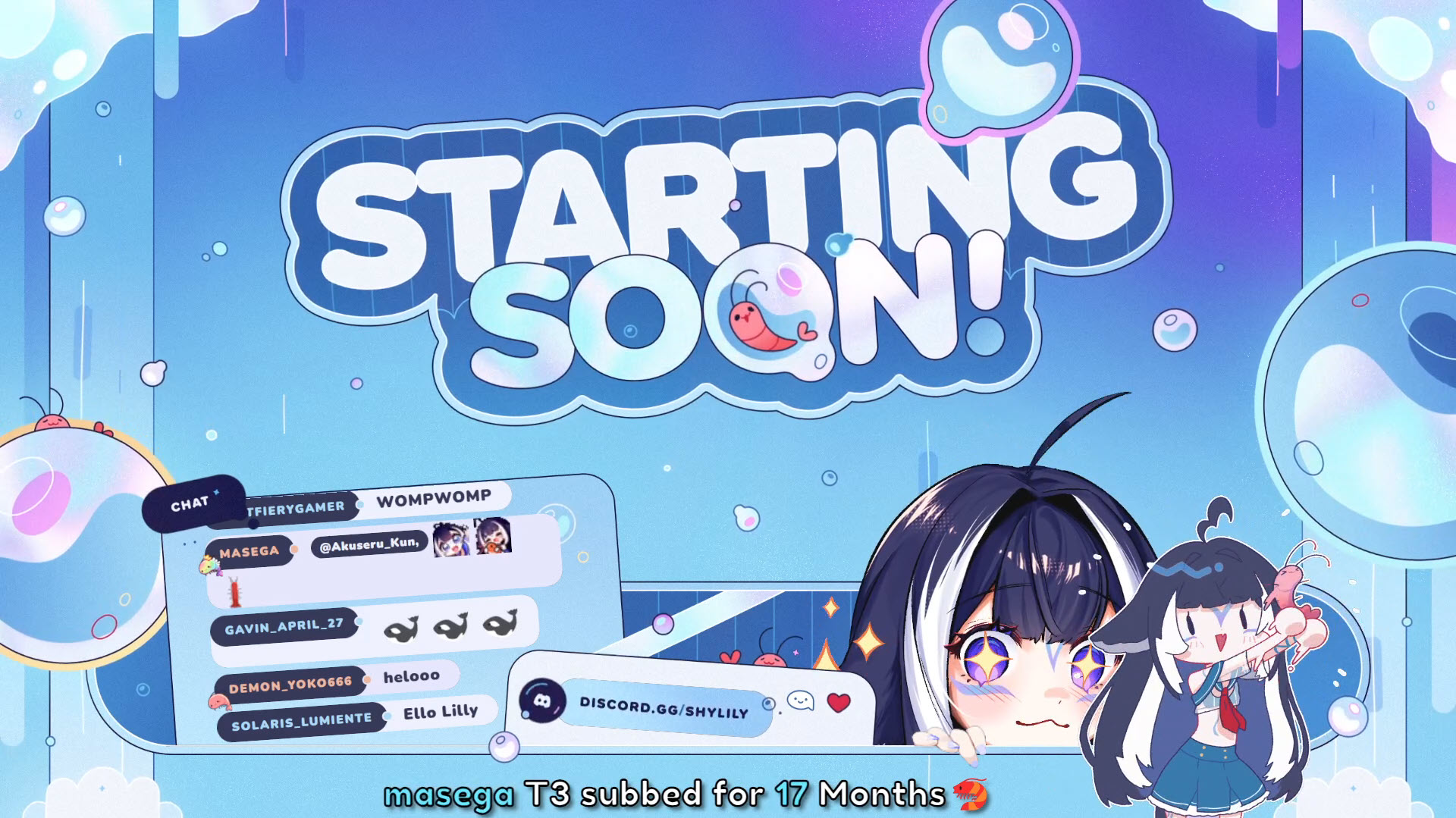
Shylily has a starting screen that shows her chat, her avatar moves, she has a chibi for notifications, and her social handles rotating. Its a great use of the space and visually appealing.*
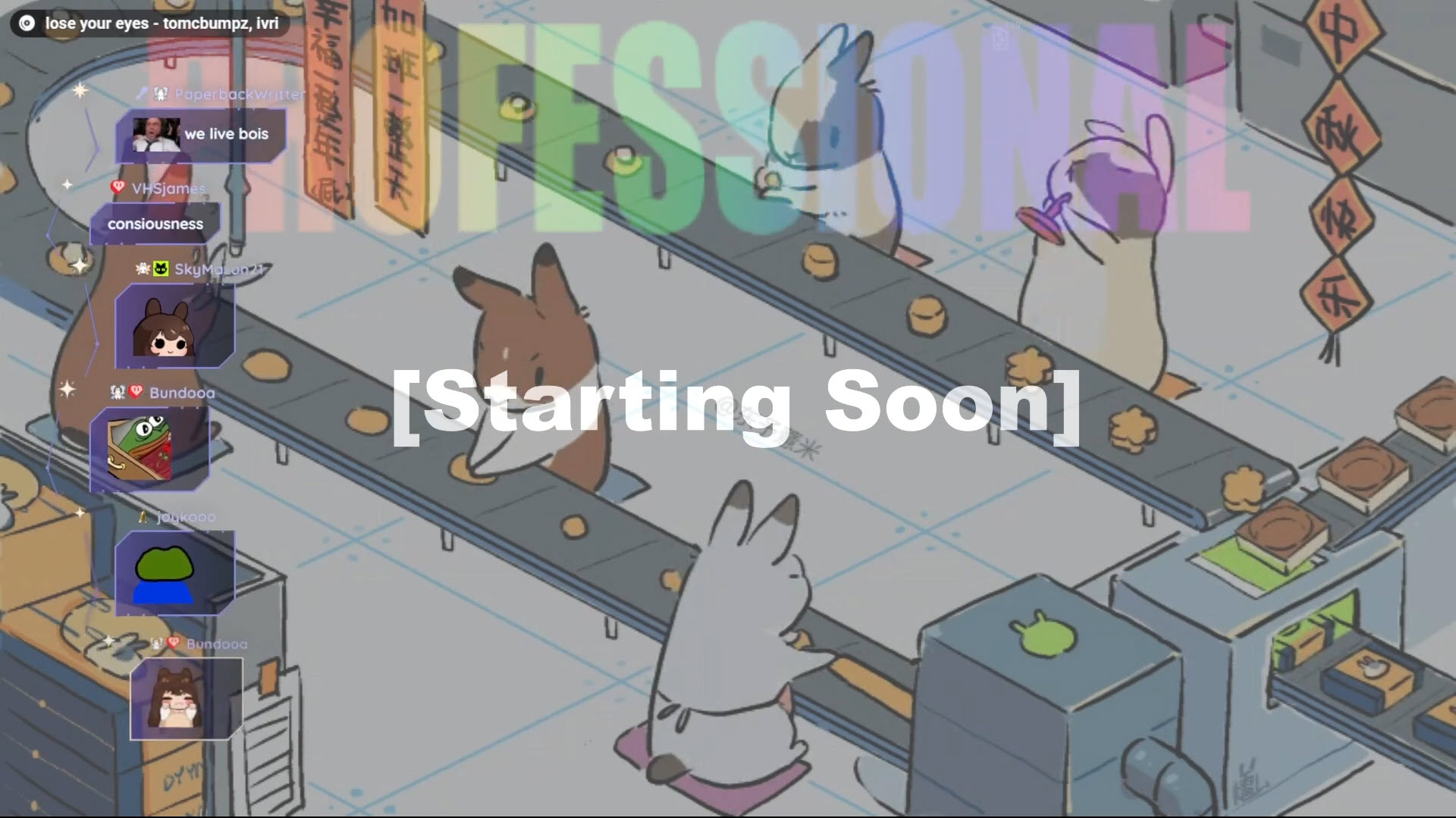
Bonnie has a super simple animated gif that loops, chat bubbles, scrolling text reading "professional content" and the current song playing. Overall a chill, cozy, and a good example of Less is More.
Just Chatting
There will be plenty of times where you're just chilling and talking to your chat. This scene should reflect that "I'm chilling and just chatting with people" vibe. Obviously the main focus of this scene is you chatting, however there are plenty of small nuances that can really sell the vibe such as a cool backdrop for viewers to look at.
Having you chat and notifications on screen makes viewers feel more "part of" these scene. Also having Easter Eggs that viewers can interact with, furthers making them feel a part of the action. Small things such as this can really make of break a scene and keep people engaged.
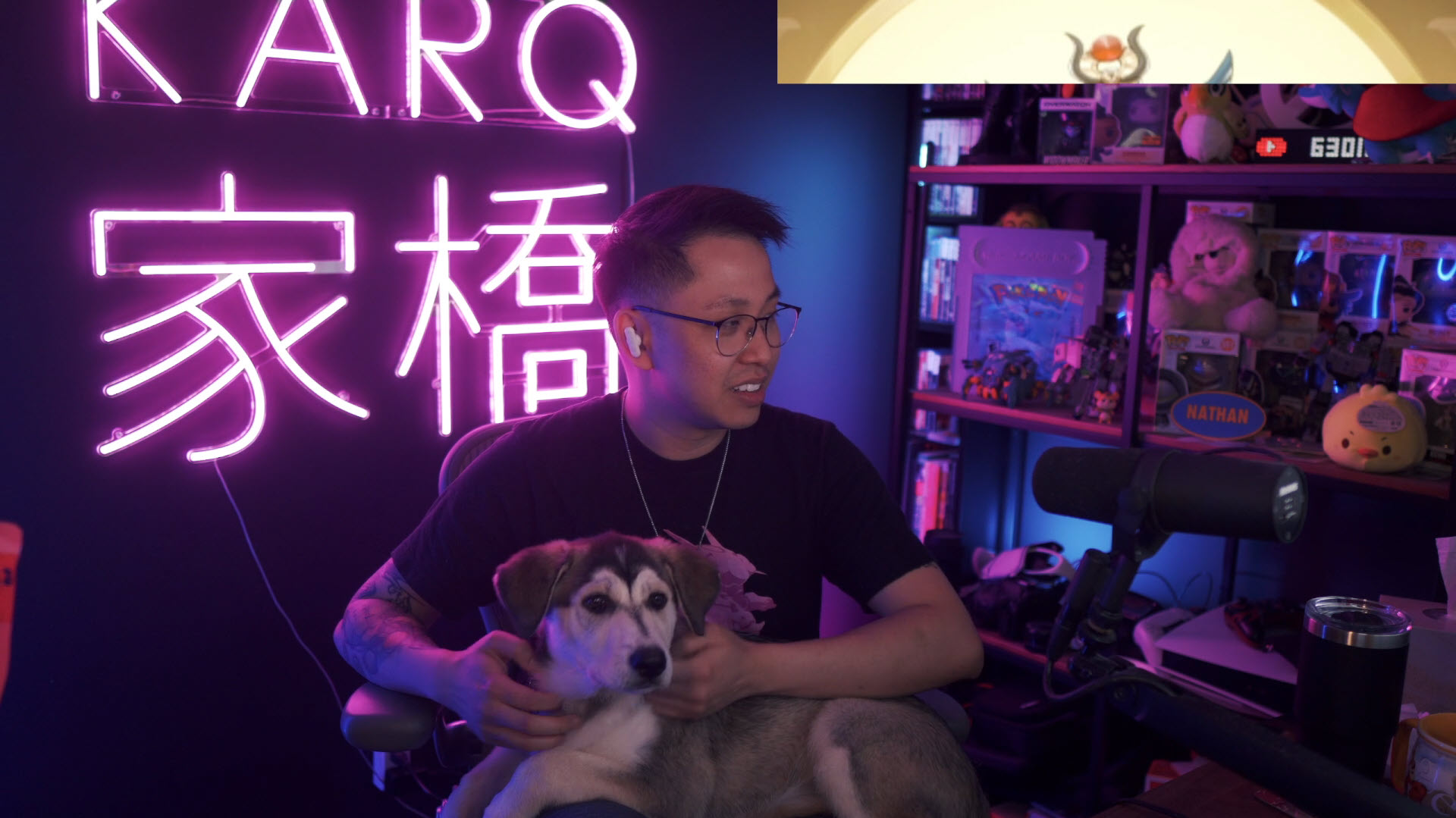
KarQ being an Overwatch streamer has most his focus on the gameplay. So for his just chatting he made a cool backdrop and just sets his webcam to full screen.
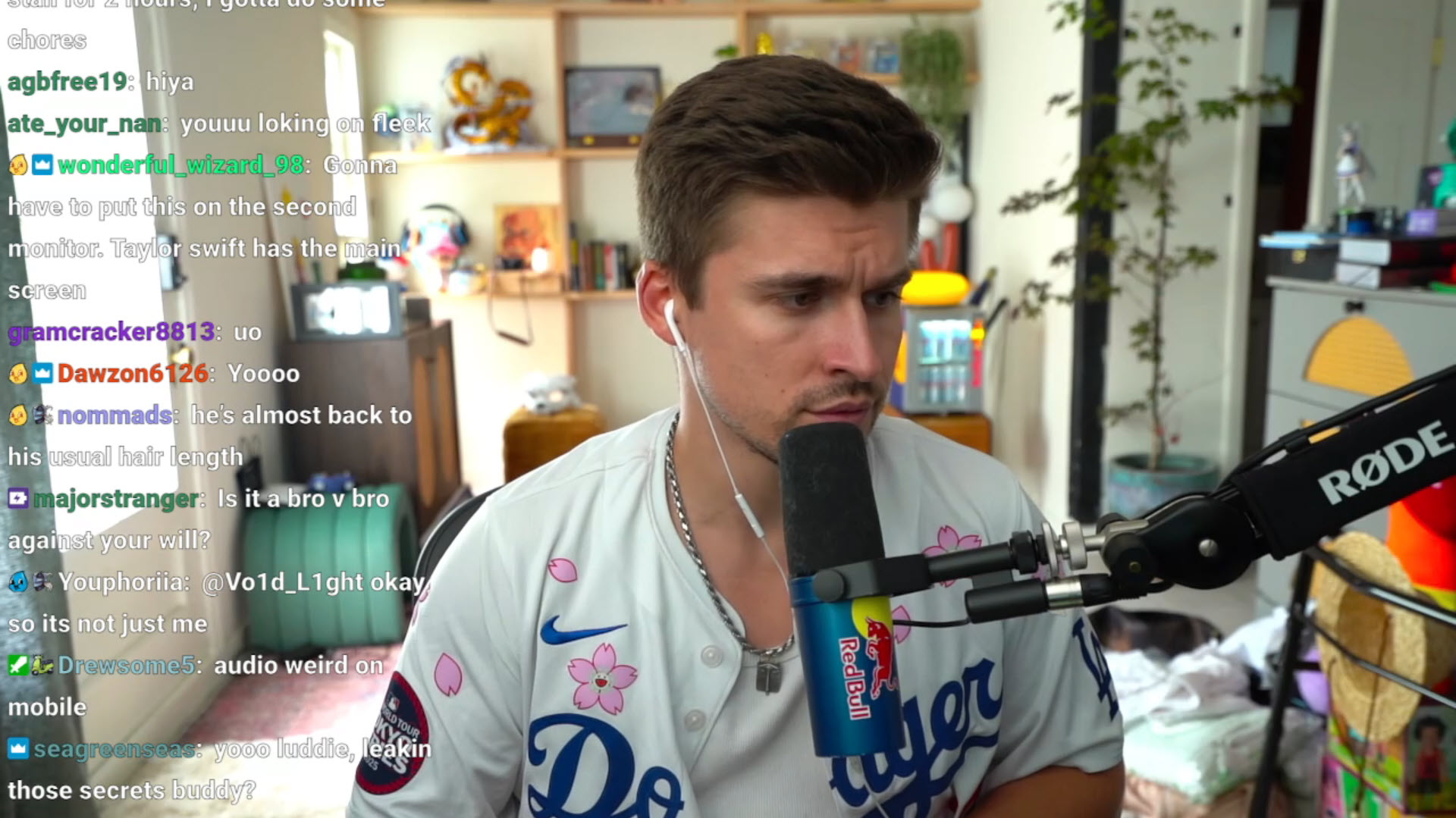
Ludwig is well... Ludwig. I don't think he even knows what to call his content. So he also made a cool backdrop and just sets his webcam to full screen
Gaming (Generic)
Following the Less is More theory you don't want to over crowd this scene. Assuming you want to make the footage into a YouTube video, you don't want notifications, chat messages, sponsor banners, and all sorts of other shit ruining your reaction to the 'big reveal'.
If you're using Nested Scenes you can easily hide them with Touch Portal automations or manually in the sources panel. You now have a minimal scene with only the key elements on screen. This setup is ideal because not all streams will become YouTube videos; So you can adjust on the fly as needed.
Primarily you'd use the whole shebang for games that are round based and have the same objective every time. (IE: Team deathmatch, capture the flag, etc.) Where as you'd turn everything except the key elements off for more narrative or experience focused content.
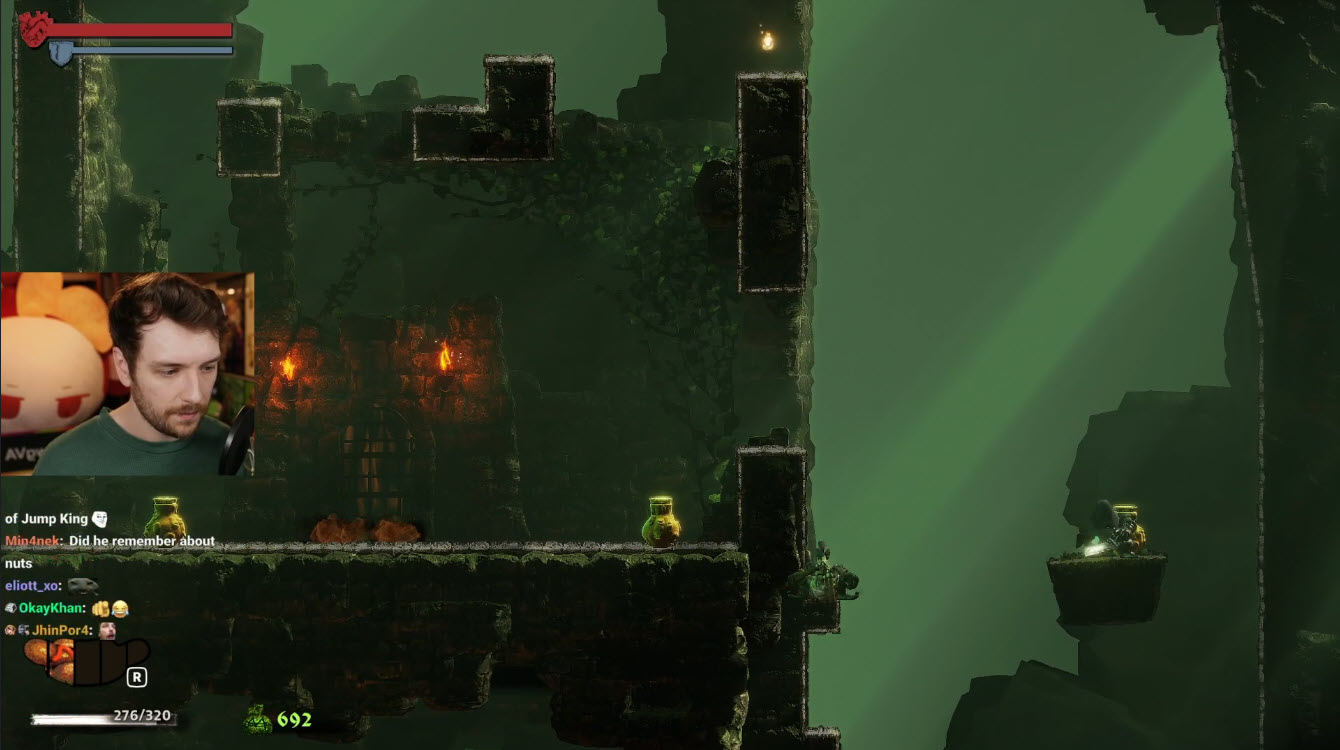
CDawgVA playing Jump King. You can see the only things on screen are his webcam, the game, and his chat.
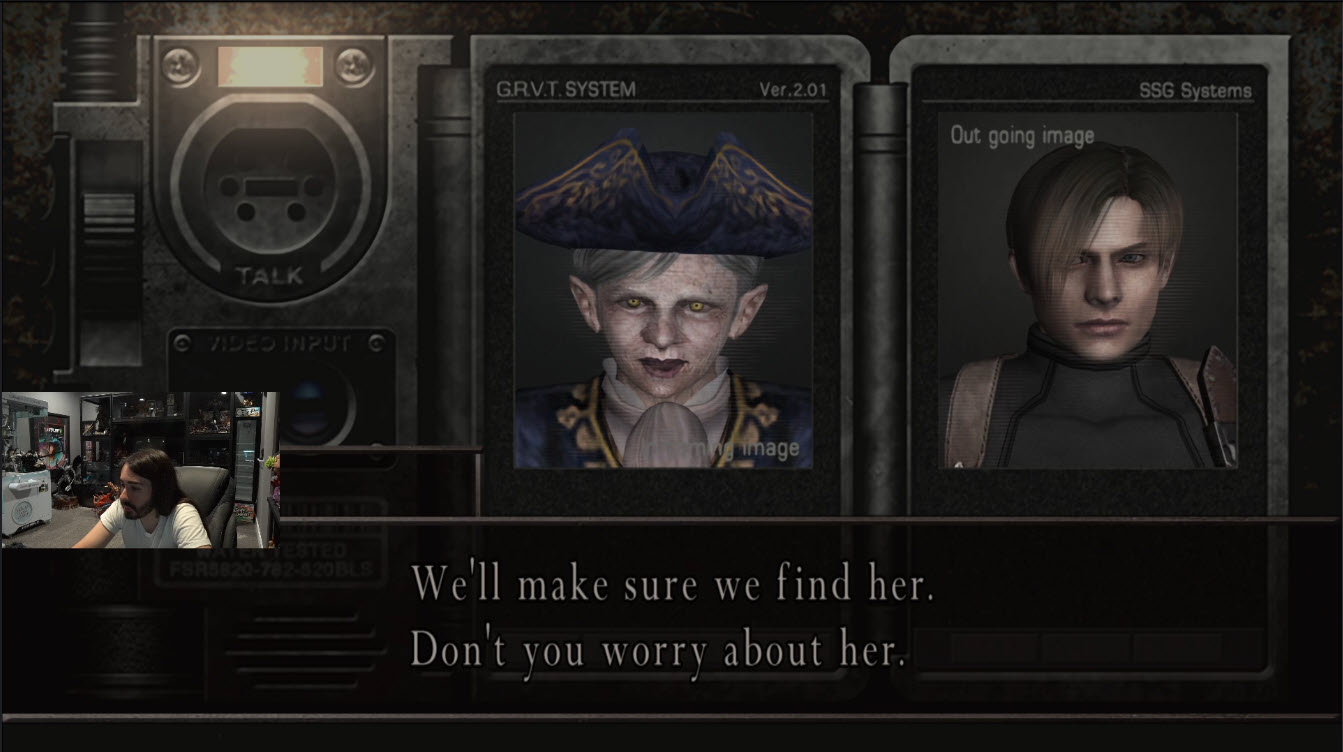
moistcr1tikal playing Resident Evil 4. You can see the only things on his screen are his webcam and the game.
Specific Purpose Scenes
Some scenes will serve a specific purpose because they need a different layout. Some examples could be graphic design, programming, programs with a vertical screen orientation, or retro games with 4:3 screen resolutions. Starting with the good news; You can port over most of your work from the Gaming (Generic) scene.
Again keep in mind that Less is More but we don't want any 'dead space' on screen. You can utilize dead space for notifications, stream goals, or for Easter Eggs. Again, if you're using Nested Scenes you can hide the clutter and swap to something else.
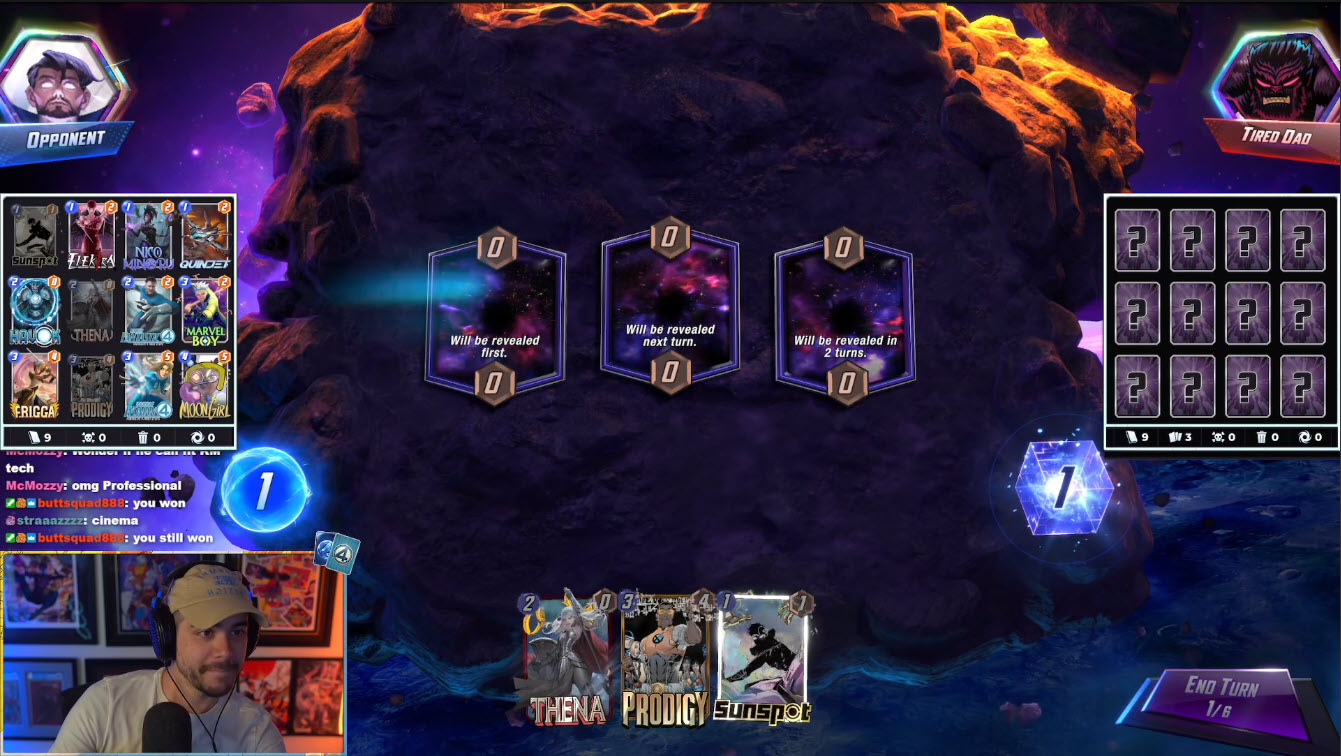
Dekkster playing Marvel Snap. You can see he has his webcam and chat in the lower left hand corner. He also has a deck tracker for himself and his opponent on the left and right sides of the screen. With this layout he isn't blocking any key elements of the game but has multiple sources.
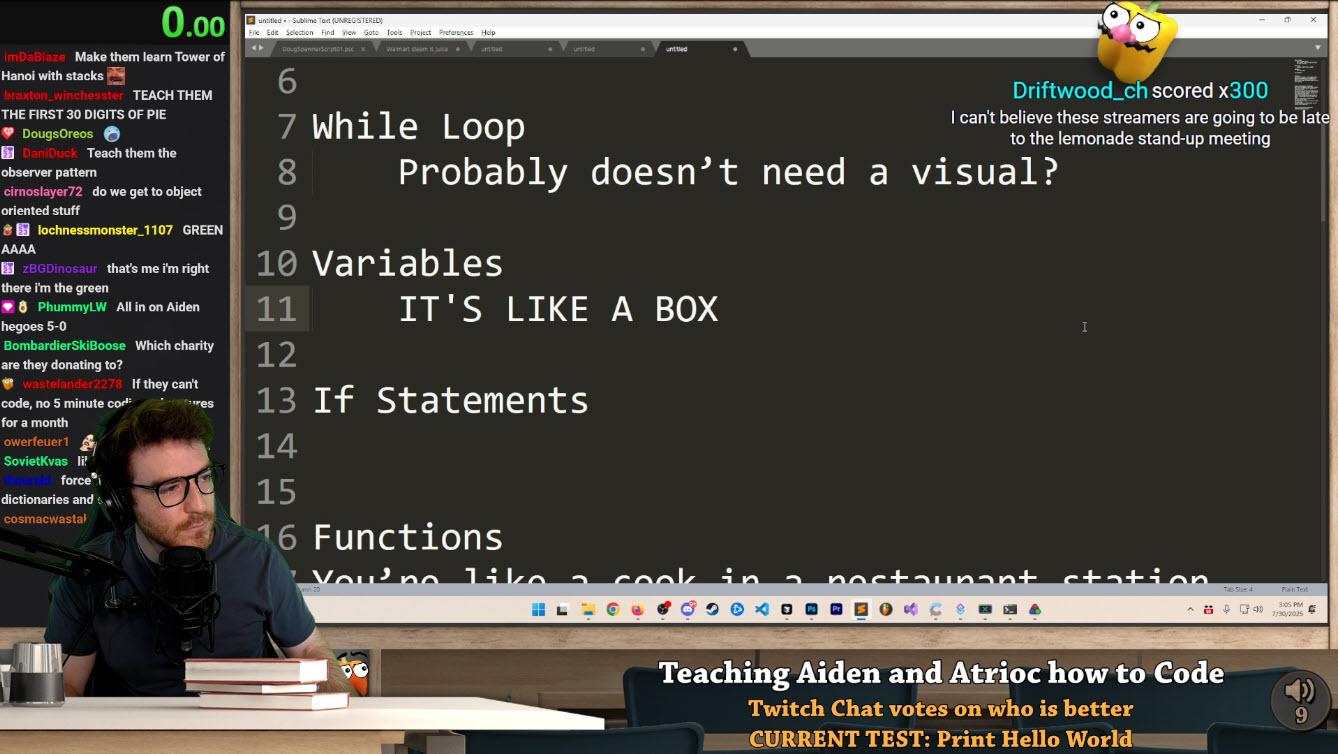
DougDoug working on code. You can see he has a bunch on screen but it's not over crowded. His webcam, chat, and speedrun clock is on the left. He's hot the stream goal and how many TTS messages are in the queue in the bottom right. On the top right he has his notifications and TTS messages. Still he keeps the code editor as the main focus of thee screen.
Stream Ending
The best thing to do is to raid another streamer so you and your viewers make some new connections; You'll still want a scene you can idle on while waiting for the raid to go through or in those off chances where raiding someone else isn't viable. (IE: No raiders, No one else in category, or when it's past chat's bed time)
Much like the Staring Soon scene you can go all out on this scene as long as it keeps the viewers attention. However, unlike the Staring Soon scene you'll only be on this screen for a max of 2 minutes before going offline. So while it can be a fun place to put things, Less is More.
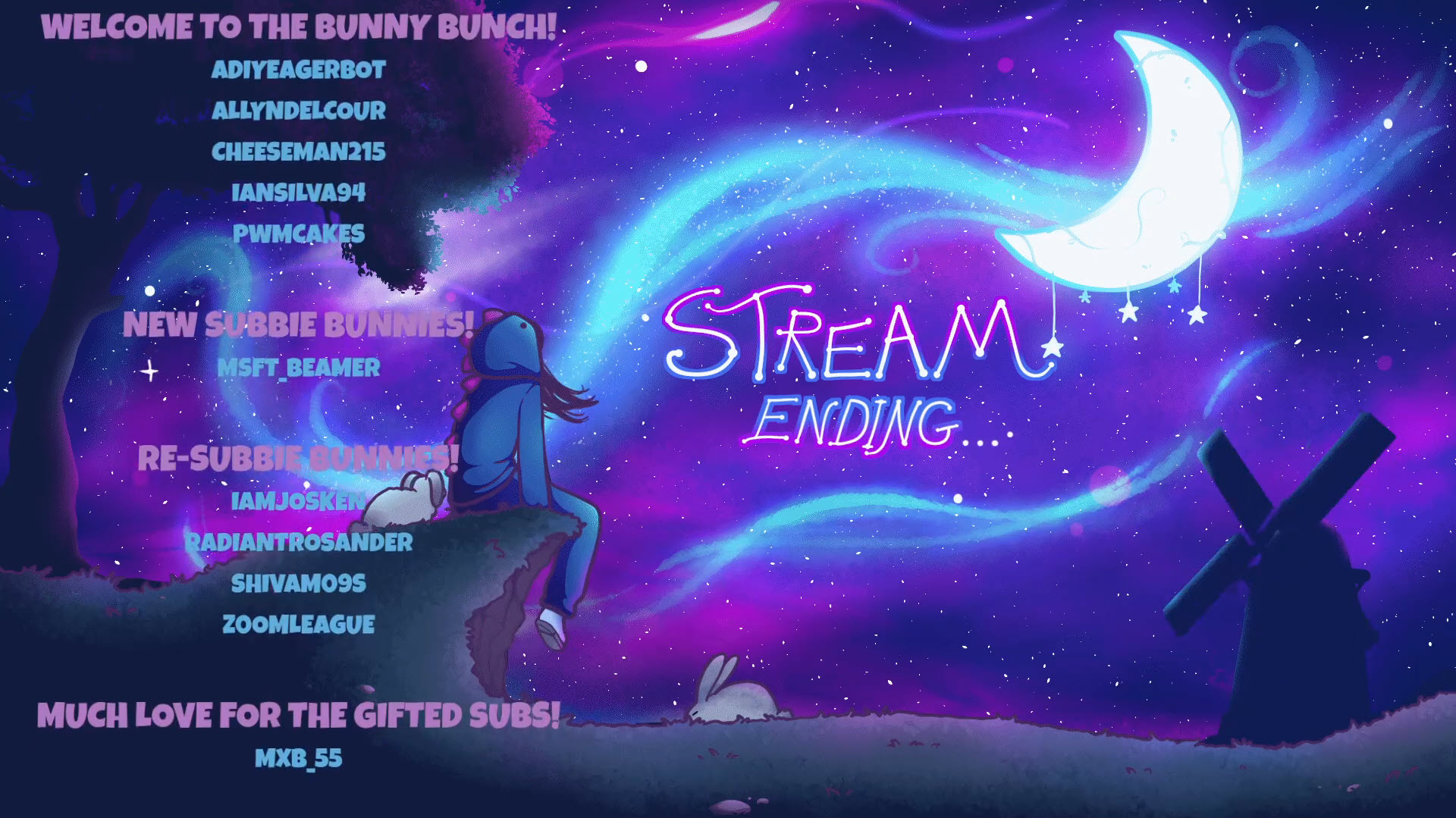
Kelisaurus has a super minimal and sleek ending screen with a animated gif in the background and an end credits stream widget.
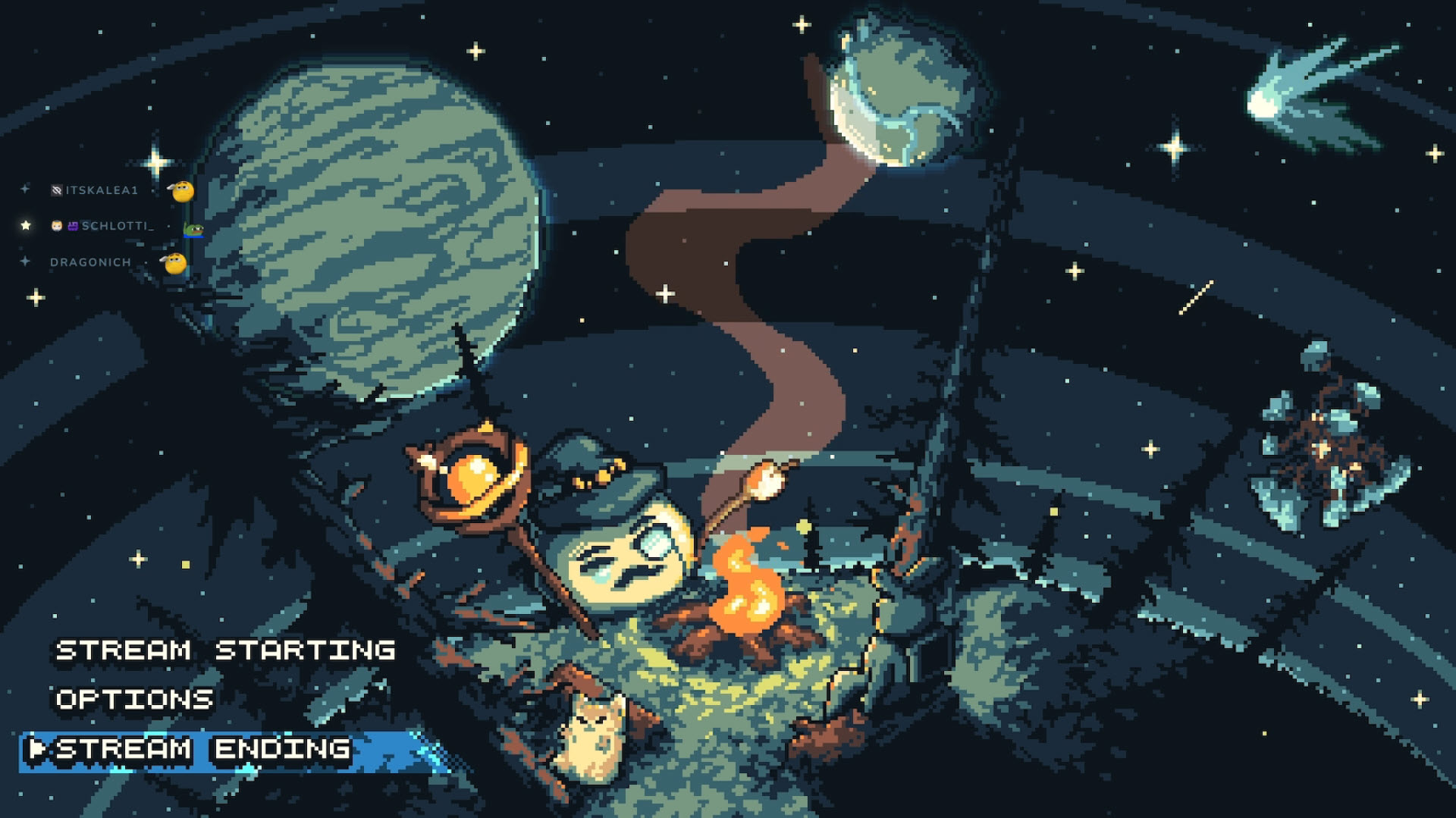
Saintone also has a minimal stream ending scene to great effect. Its just a animated gif in the background and a chat feed on the left hand side.
Elaborate Effects
It's finally time to throw the Less is More out of the window and go all out. Dream big, and create something everything bigger. Much like your Easter Eggs these effects could be just about anything. Some common examples include scene transitions, bumpers, on screen popups, the list goes on and on. It's almost anything you can think of to make a impression.
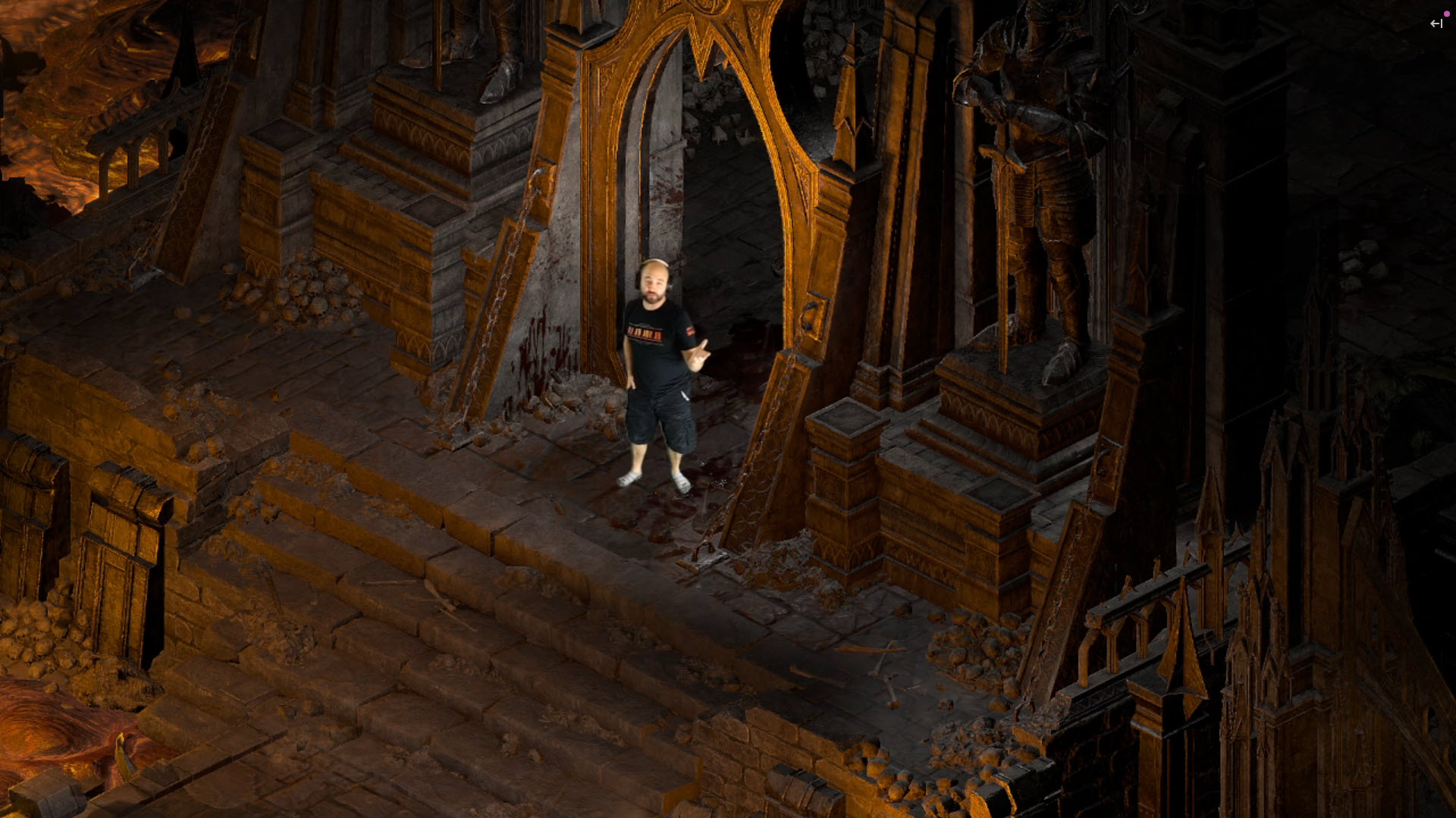
Barricade easily has some of the best elaborate effects. In the image above he is using a green screen to put himself into a game scene as shown in this clip. Another great example would also be the crazy stingers he makes to break up the tension or monotony of a stream; Such as the Only Cades stinger
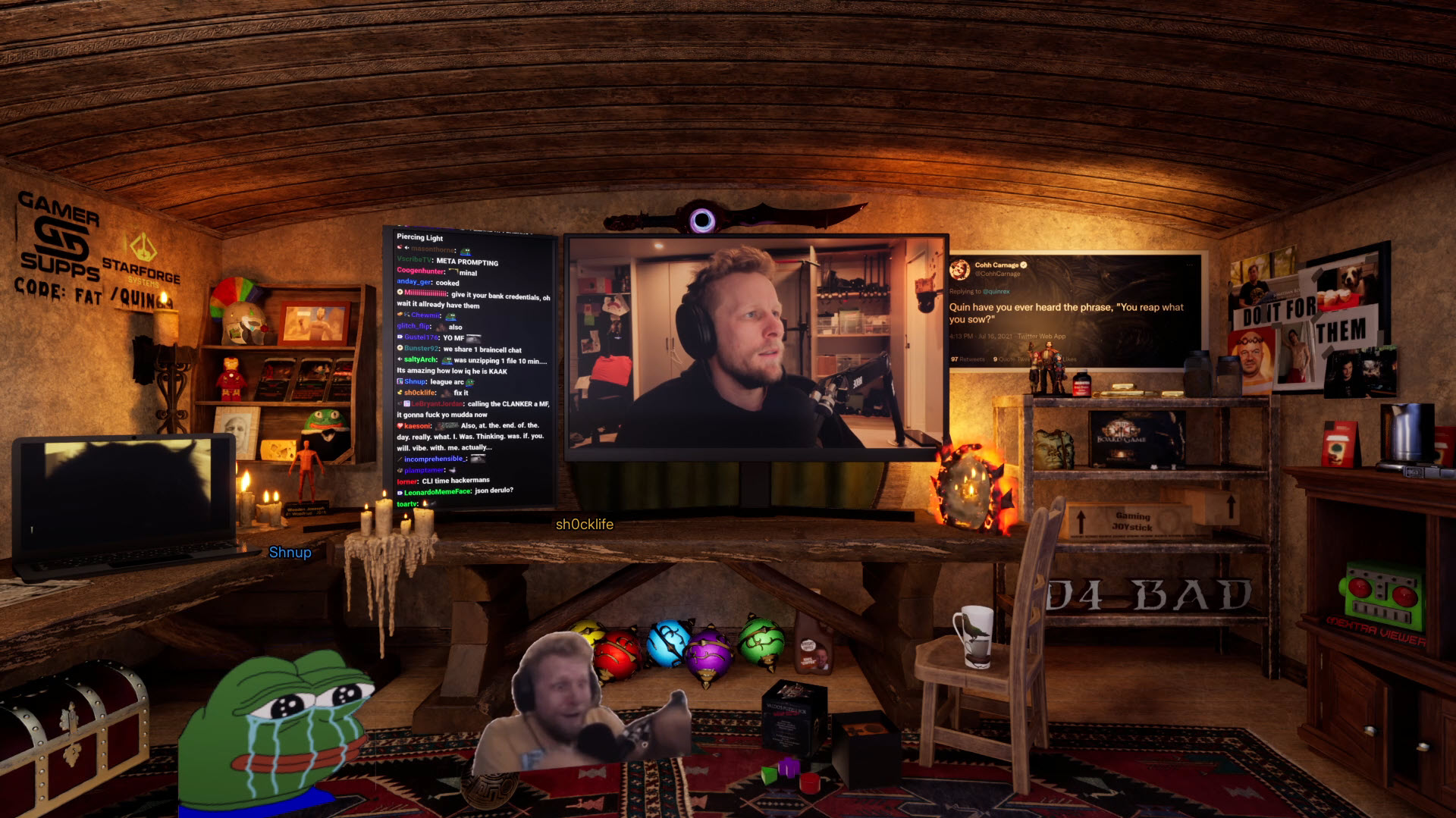
Quin69 has a great be right back scene that's also an eloibrate effect. In the image above he has an animated short of an office to cover his screen and when chat uses an emote it shows on the bottom of the screen.
Audio & Other Settings
Once all your sources and scenes are settled, there are multiple audio and other settings you'll want to configure. I've already covered this in immense detail on the OBS Spec Sheet page. I recommend taking a moment to set all of this up for the best possible viewer experience.